
Getting startedWho can use Sun Sub, installing it, signing up, the one-time agreement, and test mode
Who can use Sun Sub?
Anyone who records their own working hours and has a US or Canadian mobile number and an iPhone running iOS 16 or later. There is no roster to be on and no application to fill in: your mobile number is your account. Sun Sub is on the App Store in the United States and Canada.
If the company you work for runs its crews through Sun Painting Virginia's system, its foreman or office may add you to a job instead. Then you get a text with the download link, and the company's jobs appear in the app alongside any worksites of your own.
No code arrives
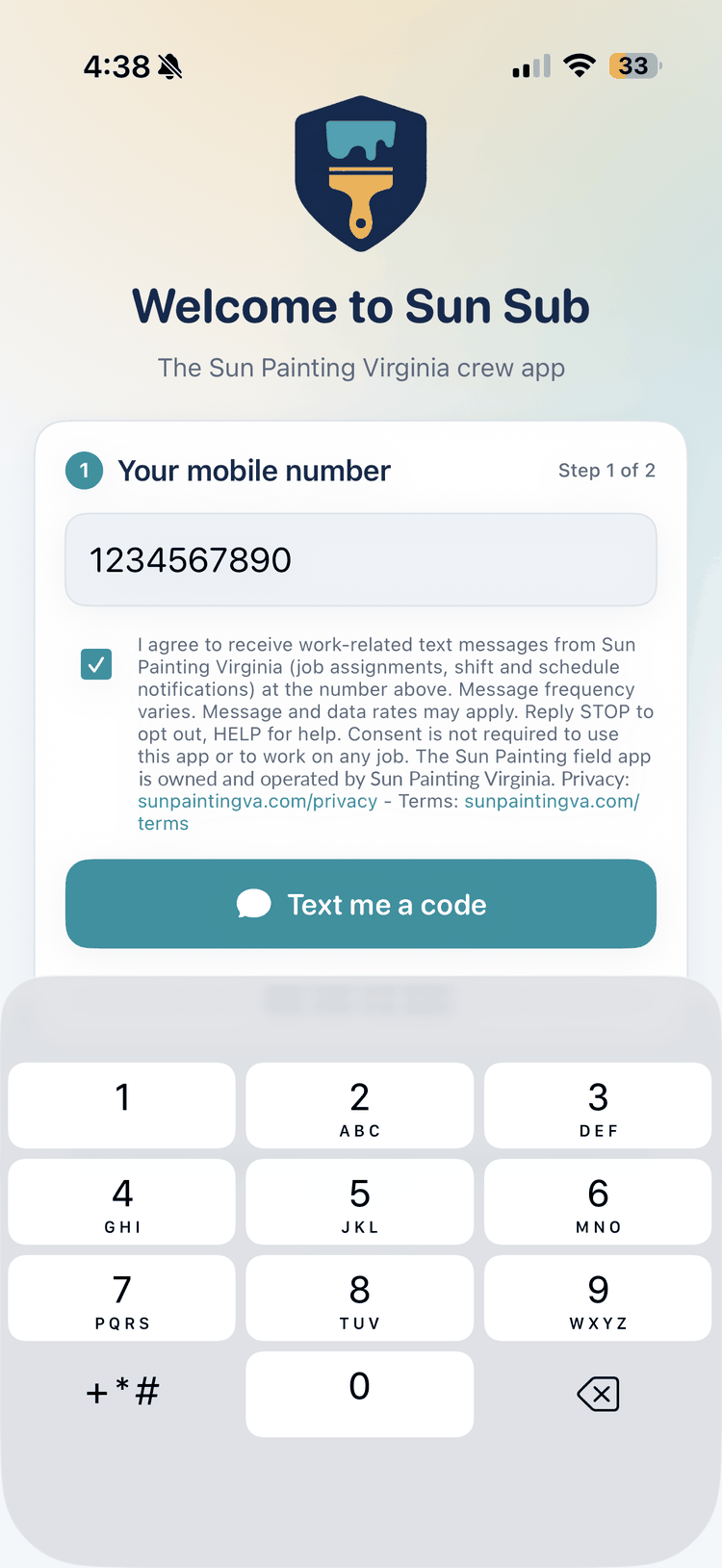
The sign-in screen moves to Step 2 as soon as you tap Text me a code, whether or not a text was actually sent (on purpose, so the screen can't be used to find out which numbers have accounts). A code is not sent when the number isn't a US or Canadian mobile number, when you've asked for too many codes in a short time, or when the app build you have is older than 1.2 and the number doesn't already have an account.
Check the number, wait a minute, and tap Send a new code. If the app says "Update Sun Sub from the App Store to sign up with this number", install the latest version and try again. If a company added you and it still doesn't work, check that they typed the exact number of the phone in your hand.
Installing the app
Open this link on your iPhone: Get Sun Sub for iPhone. If a company invited you, its text also contains the download link. The app is called Sun Sub on your home screen.
The first time you tap Clock in, Sun Sub shows a short screen explaining when it uses your location (punches, the on-phone check that runs while you're clocked in, and setting a worksite pin) and when it never does (off the clock, and never as a trail sent anywhere), and then iOS asks to allow location "While Using the App". Say yes: Sun Sub needs your location to clock in, so it can place your hours at the site (see Location). That is the only location permission it asks for. Right after your first clock-in it also asks to show notifications, for the one notification it ever sends: that you were clocked out because you left the site.
Signing up and signing in with a text code
- Step 1. Enter your mobile number and tap Text me a code. Message and data rates may apply.
- Step 2. Enter the 6-digit code from the text and tap Sign in. A code only works for about 10 minutes. Tap Send a new code if it has expired, or Use a different number if you typed the wrong one.
- Step 3 (new accounts only). Type your name as you want it to appear on your hours reports, and an email address if you'd like one on file. Your time zone is taken from the phone.
There is no password. Once you're in, that phone stays signed in for 90 days; after that, you sign in again with a new code. Each phone signs in separately. The app also sends us your phone's device name, model, iOS version and app version at sign-in so support can help if something goes wrong. Sign in at least once every 180 days to keep the account yours: a self-created account that hasn't signed in for 180 days is retired the next time its number signs in, and a new, empty account is created for that number (the old account's hours and reports are kept, but aren't shown to the new one).
The SMS consent checkbox is optional
Above the "Text me a code" button is a checkbox agreeing to work-related text messages from Sun Painting Virginia. It starts unchecked and it never gates sign-in: leaving it unchecked does not stop you signing in, clocking in, or working on any job. The sign-in code is sent whether or not you tick it.
If you do tick it, you'll get a one-time confirmation text. To stop those texts later, reply STOP to any Sun Painting Virginia message; unticking the box on a later sign-in does not opt you out. See STOP and HELP.
The one-time terms signature
After your first sign-in, Sun Sub shows a short agreement (seven points: record your hours honestly and only for yourself; location is used only at punches, the still-on-site check and pins you set; hours reports are signed and the verifier's numbers are the record; a company is linked only when you accept; creating and sending reports and linking a company need a subscription; on a company's jobs, photos you file are shared with its supervisors and may be shown to its customer; you can delete your account from the Account tab). Sign with your finger, type your full name, and tap Agree and continue. You do this once per version of the agreement; people who signed the earlier five-point agreement are asked once more after updating to version 1.2, because the agreement changed. The full wording is quoted in the Terms of Use.
The full Terms of Use and Privacy Policy are linked from that screen. You can't record hours until you've agreed. If you'd rather not, tap Sign out on that screen.
Trying the app without an account (test mode)
Enter the phone number 111-111-1111, tap Text me a code, then enter any six digits. Sun Sub opens in test mode as a sample independent account ("Frank Foreman"): every screen works — two sample worksites, clocking in and out, My hours, creating and sending a sample hours report, a pending invite from a fictitious company ("Blue Ridge Painting Co.") that turns on the company jobs and foreman tools when you accept it, the subscription screen with a sample "subscribed" state, and the Account tab — using data made up on your phone.
No text message is sent, nothing is sent to Sun Painting, nothing is charged, and nothing you do is recorded anywhere. An orange "Test mode" strip stays at the top of every screen, and Exit test mode on the Account tab takes you back to sign-in. The people, companies, jobs and addresses in test mode are fictitious. Use it to learn the app before your first day, to show it to someone, or (if you are reviewing the app) to check every feature.
WorksitesYour own places of work: adding one, setting the pin and radius, editing, archiving
What is a worksite?
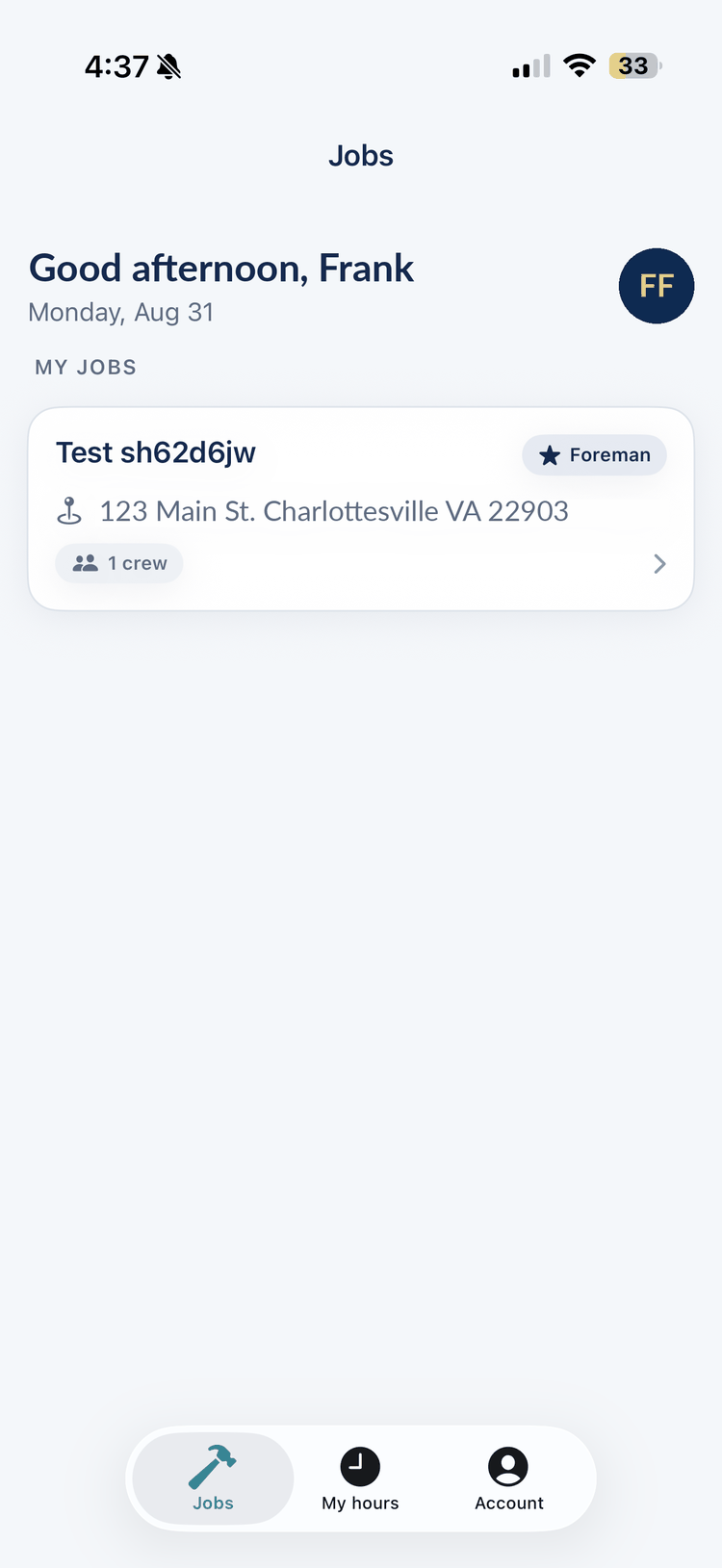
A worksite is a place you work that you set up yourself: a name (say, "Maple St. duplex"), an optional address, and, if you want your punches there verified, a location pin with a radius. Worksites belong to you. They live on the Work tab under My worksites, next to any Company jobs a linked company has put you on. A company can't see your worksites or the hours you record at them unless you choose to share them (see Company link).
Adding a worksite
- On the Work tab, tap Add a worksite.
- Type a name and, if you like, the address.
- If you're standing on the site, switch on Use my current location as the site pin and pick a radius. Otherwise leave it off and set the pin later from the site.
- Tap Save.
The first worksite you add is what makes the Work tab useful: until you have one (or a company job), the tab says "Add your first worksite to start recording hours."
Setting the site pin and radius
Open the worksite and tap Set site pin here while you're on the site. The app takes one location fix and saves it as the centre of the site, with the radius you choose (50 to 500 metres; 150 m is the default and suits most houses and small commercial sites). The card shows Pin set once there is one, or No pin until then.
A pin only affects punches made after it was set: earlier shifts aren't re-judged, and on a signed report a shift is shown as on site only when the pin existed before that shift began. Because you set the pin yourself, a report labels these checks "worker-set pin" rather than "company fence", and prints the pin's coordinates and radius so whoever reads it can see what the check was made against. Setting a pin needs location access; with it off, the button explains why and offers a shortcut to Settings.
Editing or archiving a worksite
Open the worksite to rename it, change the address, move the pin (tap Set site pin here again from the new spot) or change the radius. Archive hides a worksite you no longer use; you can't archive one while you're clocked in there. Archived worksites are hidden, not deleted, so the shifts you recorded there keep their site name on reports.
Clocking in and outThe live clock, verified vs. not verified, forgotten clock-outs, corrections
How do I clock in and out?
- Open the Work tab and tap the worksite or job you're working at.
- Tap the big Clock in button. The app takes one location fix at that moment and records the punch.
- When you leave, tap Clock out, either on the site's screen or on the live-shift card at the top of the Work tab.
You can be clocked in at one place at a time. If you open another site while clocked in, it says "You're clocked in at [site]. Clock out there first." After each punch a banner tells you whether it was confirmed on site, and if not, why.
What does the live clock show?
While you're clocked in, a card at the top of the Work tab shows the site, the time you clocked in, and a running hours:minutes:seconds counter, with a Clock out button. The site's card in the list also shows a "Clocked in" chip. Live punches are timed by the server, not your phone's clock, so changing the phone's time doesn't change the record. (Punches recorded with no signal are the exception; see Offline.)
"Verified on site" vs. "Not verified" / "Awaiting review"
Every punch is compared with the site's circle: on a company job, the pin and radius the company's office approved (about 150 m by default); at your own worksite, the pin and radius you set. A shift is Verified on site only when both the clock-in and the clock-out landed inside it.
A shift is Not verified when any of these applied to either punch:
- you were outside the circle (the banner tells you roughly how far);
- your phone's location accuracy was worse than 100 m at that moment;
- no location was available (permission denied, or no fix in time);
- the job has no approved site location yet, or your worksite has no pin (or the pin was set after the shift began);
- the phone reported a simulated (fake) location.
Not verified is not the same as rejected. On a company job your hours still go to the supervisor, who reviews them with the punch evidence rather than approving them on sight: Awaiting review means they haven't decided yet; Confirmed and Rejected are their decision. Shifts at your own worksites have no supervisor and show no review chip; a signed report simply says whether each one was on site.
I forgot to clock out
Your shift stays open, and the live clock keeps counting, until you tap Clock out — or until your phone clocks you out for you. From version 1.4, while you're clocked in your phone keeps checking that you're still inside the site's circle, in the background too (you'll see iOS's blue location indicator). If you've been outside the circle for more than 10 minutes, you're clocked out automatically as of the moment you left, with a notification, and the shift is marked "Auto clock-out" in My hours. Stepping out for lunch? Clock out first, or let the phone do it; either way the time away isn't counted. Tap Clock in again when you're back.
A forgotten shift never quietly becomes a huge total. A shift that is still open 16 hours after it began is closed by our server (this runs every half hour), marked Auto-closed — not counted, and left out of every total and every signed report. On a company job the supervisor can still set the hours that count for it; at your own worksite nobody can, so clock in again for the time you actually work and, if it matters, tell whoever you send your hours to. A shift you close yourself after more than 16 hours is kept but held for review on company jobs, and is also excluded from reports as over the daily limit.
I punched at the wrong time. Can I fix it?
Not in the app: Sun Sub cannot edit, backdate or delete a shift, and neither can a foreman. On a company job, tell your supervisor or the office what happened (job, date, and the correct times); when they review the shift they set the number of hours that is confirmed for it. At your own worksite, what was recorded is what a report shows, so keep your own note of the correct times and give it to whoever you send the report to. The original punch record itself is never changed.
LocationWhat is captured and when, why it's needed, the on-phone check and automatic clock-out, denying access
What location does Sun Sub record, and when?
Sun Sub takes a single, one-shot location fix at these moments and sends it with that action:
- when you clock in and when you clock out;
- when you choose to set a worksite's pin (the fix becomes the site's centre);
- for foremen on company jobs: when you confirm the day's crew, submit a before/after photo report, or propose a jobsite pin.
What is sent: latitude and longitude, the accuracy of the fix, your location permission level, whether the phone reported the location as simulated, and the time. Three other actions reuse the most recent fix the app already has rather than taking a new one, and only if there is one: accepting the terms, a foreman signing the scope of work, and each photo a foreman uploads. Between those moments nothing is recorded: no continuous tracking, no periodic upload, no location sent while the app sits in your pocket. Each of the moments above happens only when you tap the button for it. The one other thing the app does with your location is a check on the phone, each time you open it while clocked in, that you're still at the site (see below); that check is never sent.
Why does Sun Sub need my location at all?
To verify your hours. Each punch is compared with the site's location, and a shift that was clocked in and out on site is marked Verified on site without anyone having to call and ask. It's your own record that the hours were worked where the work was, and it's why the app won't clock you in without location: a punch it can't place can't be verified. The app explains this on a screen before iOS asks for permission the first time, and again from the Why location? link on the site screen and the Account tab.
Does the app use my location in the background, or when I'm not working?
Never when you're not working. When you're not clocked in, the app does not ask for, record or send your location at all (setting a worksite pin is the one exception, and only because you tapped the button for it). It never asks for "Always" access; "While Using the App" is the only location permission it requests.
While you're clocked in, yes — on your phone. From version 1.4, from the moment you clock in until you clock out your phone keeps comparing its own location with the site's circle, with the app open or in the background, and iOS shows its blue location indicator the whole time. If you've been outside the circle for more than 10 minutes you're clocked out automatically, as of the moment you left, and the phone shows you a notification (created on the phone; Sun Sub sends no push notifications). While you're off site but not yet clocked out, the Work screen says so and shows the time the clock-out will happen unless you're back.
That check stays on your phone. None of its readings are sent to us or kept anywhere. The server gets what it always got, your clock-in and clock-out punches; an automatic clock-out carries the last reading taken inside the site, so where you went afterwards is never recorded. The one other thing your phone says is whether the check ran for the whole shift. If it couldn't (the app was closed, or location was turned off, for 10 minutes or more), the shift is still recorded but marked not verified, with the number of minutes it wasn't watching. Keeping location on through a shift uses some extra battery; the check is deliberately coarse to keep that small. Builds before 1.4 only check when you open the app and show a reminder instead.
What if I deny location access?
You can't clock in with location off — Sun Sub uses it to place your hours at the site, so the site screen replaces the Clock in button with a note and a Turn on location shortcut. You can still clock out of a shift you already started even if location later drops; that clock-out is recorded with "no location" and marked not verified. If you turn location off after allowing it, the next time you open Sun Sub it explains that clocking in needs location and offers a shortcut to Settings. The Account tab shows Location access: Denied with an Open Settings button. Restricted means a device restriction (Screen Time or a company-managed phone) is blocking location, and the app can't change that. You can't set a worksite pin, and foremen can't use "Set the site location here", without location access.
Who sees where I was?
Only at the moments listed above, and only as part of that record. At your own worksites, nobody sees anything until you create a report or share your hours with a linked company; a report shows, for each shift, whether it was on site and the pin you set (its coordinates and radius), never your punch coordinates. On a company job, when a supervisor reviews a shift they see, for each punch, whether it was inside or outside the site circle, roughly how far it was from the centre, the accuracy of the fix, and flags such as "recorded offline" or "mock location"; the coordinates are kept with the punch record. You don't see coordinates in the app; you see the verified chip and a plain-language note.
Offline / no signalPunches saved on the phone, "Waiting to upload", "Upload now", no double counting, the limits on offline punches
What happens when I have no signal?
Every punch is written to your phone first, then sent. With no signal you'll see "Clocked in. No signal right now — this will upload automatically." (or the clock-out equivalent) and the app behaves as if the punch landed. When a connection comes back, or when you next open the app, the saved punches upload on their own. A punch recorded offline is timed by your phone's clock; a live punch is timed by the server. A signed report shows which was which ("server" or "device, offline") for every shift.
The limits on offline punches
Because an offline punch carries your phone's time rather than ours, the server checks it before accepting it. An offline punch is refused when:
- its time is more than 7 days in the past (or earlier than your account), or more than 2 minutes in the future;
- it would overlap a shift already recorded for you;
- it would push that day past the 16-hour daily limit.
A refused punch is dropped from the phone and the app tells you: "N punch(es) could not be uploaded. Check My hours and re-enter them if needed." Nothing on the phone can change a punch's time, so if a shift is missing, clock in again for the time you actually work from now on and keep your own note of the missed hours.
"Waiting to upload" and "Upload now"
While anything is waiting, the Work and My hours tabs show an orange bar, "N punches waiting to upload", with a Retry button. The Account tab shows the same count under "This phone" and an Upload now button. Uploads also try automatically whenever the app comes to the foreground and each time it refreshes, so normally the count returns to 0 without you doing anything.
Get the count to 0 before you sign out. Punches waiting on the phone are not removed by signing out; they upload the next time someone signs in on that phone.
Could a punch be counted twice?
No. Every punch carries a unique ID created on the phone. If the same punch is sent again (for example the upload went through but the reply never reached you), the server recognises the ID and returns the original shift instead of opening a second one.
"N punch(es) could not be uploaded. Check My hours and re-enter them if needed."
If a punch keeps failing (25 attempts), or the server refused it for one of the reasons above, the app stops retrying it and shows this message on the Account tab. The hours aren't recorded, so check My hours; on a company job tell your supervisor the job, date and times so they can sort it out.
My hoursWhat the list shows, what the reason text means, why numbers change after review
What does the My hours tab show?
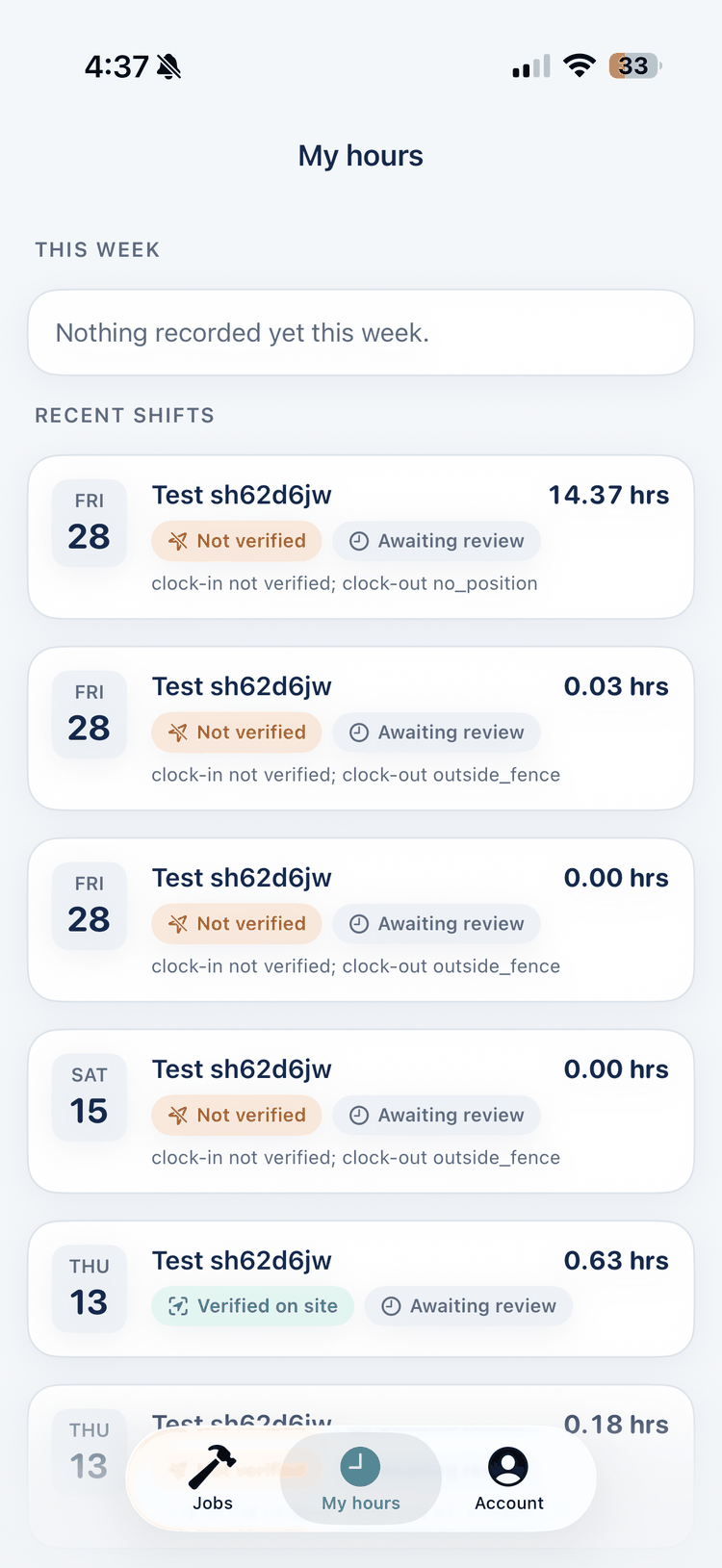
This week has up to three tiles: Recorded (what the app timed), Verified (time the app could place at the site) and, in weeks with company-job shifts, Confirmed (what your supervisor approved). Recent shifts lists each shift with the date, the site, the hours, a location chip (Verified on site or Not verified) and, for company jobs, a status chip (Awaiting review, Confirmed or Rejected). Shifts our server closed for you show Auto-closed — not counted. Pull down to refresh. You only ever see your own shifts. The Send hours to employer button at the top creates a signed report (see Signed hours reports).
What does text like "clock-out outside_fence" mean?
Under a shift that wasn't verified, the app shows the server's note about which punch failed and why. The clock-out reason is spelled out; the clock-in is only marked as not verified.
| Note | Meaning |
|---|---|
| clock-in not verified | Your clock-in punch was not confirmed inside the site circle, for any of the reasons in Verified vs. not verified. |
| clock-out outside_fence | Your clock-out was outside the site circle. The banner at the time told you roughly how far away you were. |
| clock-out poor_accuracy | Your phone couldn't get an accurate fix at clock-out (worse than 100 m), so it couldn't be trusted either way. |
| clock-out no_position | No location was available at clock-out: permission denied, or no fix arrived in time. |
| clock-out no_approved_fence | The job had no approved site location, or your worksite had no pin, so nothing could be checked. Set a pin on your worksite; on a company job, foremen can propose one and the office approves it. |
| clock-out mock_location | Your phone reported a simulated location. Simulated locations are never verified. |
| exceeds 16h — needs supervisor review | The shift ran past 16 hours. On a company job no hours are proposed until your supervisor sets them; on a report it's listed as not counted. See I forgot to clock out. |
| day exceeds 16h — needs review | This shift took the day's total past 16 hours. |
| auto-closed: no clock-out recorded — needs supervisor review | You never clocked out, so our server closed the shift 16 hours after it began. It's never counted. |
Why did my hours change after my supervisor looked at them?
On a company job, when your supervisor confirms a shift they set the number of hours that goes to the timesheet. If that differs from what the app recorded, the shift shows both: "Supervisor confirmed 7.50 hrs of the 8.25 recorded." Once a shift is confirmed, its hours figure, the This-week Confirmed tile and any signed report use the confirmed number. If you disagree with a confirmed figure, talk to your supervisor; the app can't change it. Shifts at your own worksites are never adjusted by anyone.
Signed hours reportsCreating one, what's in it, emailing and sharing it, checking one at the verifier, what the verdicts mean
Creating a report
- On My hours, tap Send hours to employer.
- Pick This week, Last week or a custom range (up to 62 days; weeks start on Monday). The screen shows a live summary of what would be counted and what would be left out.
- Enter the employer's name and, if you want to email it, their email address.
- Tap Create signed report. Our server builds the PDF, signs it and shows you the report id and totals.
The button is disabled when there is nothing to count in that period (for example only an open shift). Creating and emailing reports needs an active subscription, and it has to be switched on on our side; while it isn't, the button isn't offered.
What's in a report?
Your name and the last four digits of your mobile number, the period and time zone, the employer's name, and four totals: Hours counted, Server-stamped (hours whose punches were timed by our server rather than your phone), On site (hours the app could place at the site) and Excluded. Then a table with one row per shift:
- Date, Site, In, Out, Hours — for company-job shifts the hours are the supervisor-confirmed figure, and the row says so when it differs from what was recorded;
- Time source — "server", "device, offline" or "mixed";
- Location — "On site (company fence)", "On site (worker-set pin)", "Off site" or "—" when nothing could be checked; a worksite row also lists the pin's coordinates, radius and when it was set;
- Employer review — confirmed or pending for company jobs, "n/a" for your own worksites.
A second table, Not counted, lists shifts left out and why: still open, auto-closed, rejected by the company's supervisor, or over the daily limit. A "How to read this report" box repeats these definitions on the PDF itself. The footer of every page prints the report id, the key id, the fingerprint of the signed record, the verify link and a QR code that opens the report's record page.
What does "signed" mean, honestly?
When a report is created, our server writes the report's data as a fixed record, signs that record with its private key (RSA-PSS with SHA-256), stores both, and embeds the record and the signature inside the PDF as an attachment (sunsub-hours.json). It also stores a fingerprint (SHA-256) of the exact PDF file it handed you.
Any change to the file is detected by the online verifier (byte-exact match against the file we issued). The embedded record is digitally signed and can be checked offline with our public key. The printed pages themselves are not signed — always trust the verifier's numbers, not the numbers printed on a file that fails the byte-exact check.
In other words: an edited PDF can still look right, so anyone who is relying on the numbers should check the file at the verifier, or scan the QR code, and read the numbers there. Our public keys are published at /sunsub/keys for anyone who wants to check the embedded record offline; the verifier page explains how.
Checking a report at the verifier
Go to /sunsub/verify and either upload the PDF (up to 3 MB) or type the report id printed on it. Scanning the QR code opens the report's record page, which shows the totals we hold for that report (uploading the file shows the full per-shift record). No sign-in is needed. Every check is logged (verdict, time, network address) so we can spot forged files. The result is one of:
| Verdict | Meaning |
|---|---|
| Authentic | The file is byte-for-byte the one we issued. Its numbers can be relied on. |
| Revoked | We issued this report but have since withdrawn it (for example the account holder asked us to, or it was found to rest on false records). Don't rely on it. |
| Record valid, file altered | The signed record inside the file is genuine and matches a report we issued, but the file itself is not the one we handed out: something about it has been changed. The verifier shows the numbers we hold; use those, not the printed pages. |
| Unknown record | The file carries a valid-looking signature but we have no matching report. Treat it as forged; we are alerted when this happens. |
| Not verified | The file couldn't be checked: no signed record inside it, a signature that doesn't check out, or a file that isn't a Sun Sub report at all. |
Emailing, sharing and finding old reports
From the result screen (and later from Account → My reports) you can Email to employer (we send the PDF from our address, with the employer's name and your name in the message), Share PDF through the iPhone share sheet, or View PDF. My reports lists every report you've created with its period, totals, status and when it was sent; a report can be re-sent to a different address at any time. Reports are kept on our server, so a report you already handed to someone stays checkable even after you delete your account.
Company linkSending hours to your employer automatically, invites, the second code, sharing worksite hours, unlinking
What is a company link?
Companies that run their crews through Sun Painting Virginia's system can receive your hours directly, without a report: once your account is linked to a company, its jobs appear under Company jobs on the Work tab and the shifts you record on those jobs go to that company's supervisors, the same way they always have for rostered crews. A link is made only with your consent, in one of the three ways below. The first two need an active subscription unless the company's office has marked your account complimentary; the third never does. It also has to be switched on on our side; while it isn't, the Company link screen isn't offered.
Accepting an invite from your foreman or the office
When a foreman or the company's office adds your number, you get a text ("Sun Sub (Sun Painting Virginia): [company] wants to add you to [job]. Open the app to accept or decline. Reply STOP to opt out.") and an invite card at the top of the Work tab. Tap Accept to link, or Not now to decline; an invite expires after 7 days. On the card you can also switch on sharing your worksite hours (off by default). No code is needed, because you're already signed in on that phone.
Linking by typing the company's name
- Go to Account → Company link and type the company's name exactly as they use it in Sun Sub.
- Choose whether to share your worksite hours with them, then tap Continue.
- If your number is on that company's pre-approved list, we text you a second code. Enter it and the link is made.
The screen always says a code was sent, so it can't be used to test which companies know which numbers. If no code arrives, or the code screen says "We couldn't match that company and your number", ask the company to add your number to its Sun Sub roster (its office does this on the company's Sun Sub hours page) and try again.
Your own company links by itself
If you run a company that works through Sun Painting Virginia's system and the mobile number you signed in with is the number on file for your company there, your account is your company's account: it is linked the moment you sign in, with no name to type, no second code and no subscription. Company jobs appear on the Work tab right away, and the office sees the account on the company's Sun Sub hours page. If the office puts your number on the company later, the link is made the next time the app refreshes. You can unlink in Account → Company link at any time; the app then leaves you unlinked until you next sign in with the company's number, which links you again.
What does a linked company see?
Your name and number on its roster, and every shift you record on its jobs, with the punch evidence its supervisors use for review. Hours at your own worksites are shown to the company only while Share my worksite hours with my company is on (Account → Company link); switch it off and they disappear from the company's view. Your reports, your other worksites' details and your subscription are never shown to a company.
Unlinking
If you created the account yourself, Account → Company link → Unlink removes you from the company's jobs and stops sharing (clock out first). The hours you already recorded on its jobs stay in the company's records. Accounts a company's office or foreman created for their crew show "[company] set up this account, so only they can remove the link. Ask the office if you're leaving."; ask the company to remove you, or delete your account.
SubscriptionWhat the subscription unlocks, what stays free, buying it in the app or on our website, managing and cancelling, restoring a purchase
What does the subscription unlock, and what is free?
A Sun Sub subscription is billed monthly per account: US$119.99 a month as an in-app subscription through the App Store, or US$120 a month by card on our website (Apple's price grid has no exact $120 step; the App Store price is shown in your local currency on the Subscribe button). It unlocks creating and emailing signed hours reports, and linking your account to a company yourself (by name or by accepting an invite). Everything else is free and stays free: signing up, worksites, clocking in and out, offline punches, My hours, and anything a company's foreman or office sets up for you (their jobs, crew tools, supervisor review). If the office has marked your account complimentary, you have the same access without paying, until the date they set.
Buying it
In the app (App Store). Go to Account → Subscription and tap Subscribe — [price]/month. Apple's purchase sheet appears and the subscription is charged to your Apple Account, like any App Store subscription. Apple handles the payment; we never see your card. When Apple confirms the purchase, the app sends Apple's signed receipt to our server and your status flips to subscribed within a few seconds. If the button shows a spinner, the app is still fetching the product from the App Store; if it says "Subscriptions are temporarily unavailable", the App Store couldn't return it (no Apple Account signed in, no connection, or the product not yet live) — try again later, or tap Restore purchases if you've already bought one.
On our website (card). On the US App Store storefront the same screen also offers a plain link, Subscribe on our website instead. It opens a browser sheet to our payment provider's (Stripe's) checkout page, where you enter your card. Your card details go to Stripe and never touch our server. When you finish, the page offers an Open Sun Sub button and the app refreshes your status; if it hasn't caught up yet, tap I've subscribed — refresh. Details are on /sunsub/subscribe. The website link isn't shown on other storefronts, or while it's switched off on our side; the in-app purchase always is.
One subscription is enough: an account is subscribed if either route is active. If you somehow hold both, the app shows the one it's using and you should cancel the other.
Managing, cancelling and failed payments
The Subscription screen says which way you're billed: Billed through the App Store or Billed by card on our website, with the renewal or end date.
- App Store subscriptions: Manage subscription opens Apple's subscription sheet (also reachable in the iPhone Settings app → your name → Subscriptions). Cancel, change your payment method or ask for a refund there; refunds for App Store purchases are decided by Apple under its policies, not by us. If Apple can't charge your card at renewal, Apple retries and may keep the subscription active for a short grace period; while it's retrying, the app treats you as subscribed only during that grace period.
- Card subscriptions on our website: Manage subscription opens Stripe's customer portal, where you can update your card, see invoices and cancel. If a renewal payment fails, you keep access for 3 days while Stripe retries the card; after that, creating and sending reports and linking pause until a payment goes through.
Either way, cancelling stops the next renewal; the features stay unlocked until the end of the period you've paid for, and there are no partial refunds from us for the unused part of a month. Refresh status on the Subscription screen asks our server for the latest state. Restore purchases asks the App Store for your current subscription and sends it to our server again — use it after reinstalling the app, on a new phone, or if the app shows you as unsubscribed right after buying.
Subscription in test mode
In test mode the sample account starts without a subscription, so you can see the gate. Tapping Show subscribed state (sample) flips the sample to "Billed through the App Store" without any real purchase (Restore purchases does the same). Nothing is charged, no App Store sheet appears, and no website is opened in test mode.
AccountWhat each row means, signing out, changing your details, deleting your account
What does each row on the Account tab mean?
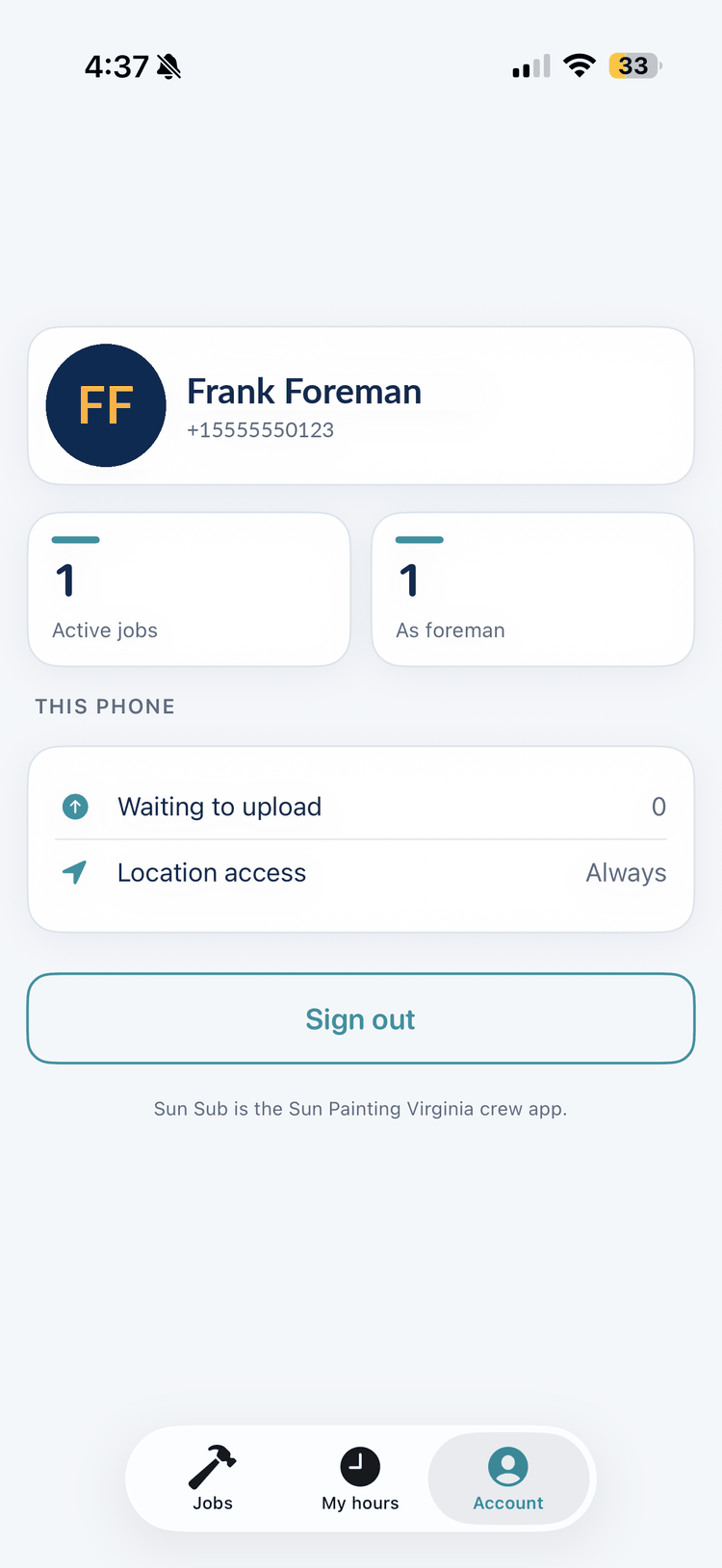
- Your name and phone number, with your company's name if you're linked or Independent if you're not.
- Active jobs and As foreman: company jobs you're on, and how many you're the foreman of. Only shown when you're linked to a company.
- Company link: link a company, see and answer invites, the worksite-hours sharing switch, and Unlink (see Company link).
- Subscription: your status and how you're billed, the Subscribe button (App Store), the website link where it can be offered, Manage subscription, Restore purchases and Refresh status (see Subscription).
- My reports: every signed report you've created, with resend and share.
- Verify a report: opens the public verifier.
- Waiting to upload: punches saved on this phone that haven't reached our server yet. An Upload now button appears whenever this isn't 0.
- Location access: what you've allowed in iOS: While using, Denied, Restricted or Not set (Always can still show if you granted it to an earlier version; the app no longer asks for it). Under it, a short note on what location is used for and a Why location? link to the full explanation. If location is off you'll also see a warning and an Open Settings button.
- If hour recording is switched off for everyone (see Troubleshooting), a notice says so here.
- Help and legal: Help & support opens this page, plus the Privacy Policy and Terms of Use.
- Delete account (see below), Sign out, and the app version at the bottom (useful when you report a problem).
Signing out
The Sign out button is disabled while you're clocked in; the app says "Clock out before signing out." Signing out tells the server to cancel this phone's sign-in, removes it and the app's cached copy of your account, jobs and worksites from the phone, and stops the site check. It signs out this phone only; if you're also signed in on another phone, that one stays signed in.
Signing out does not remove punches that are still waiting to upload. Make sure Waiting to upload is 0 first, especially on a shared phone.
Changing your name, email, phone number or language
Your name and optional email are set when you create your account; if a company created the account for you, its foreman set your name and Spanish/English preference. Your phone number is your sign-in and can't be changed: to move to a new number, sign up with the new one (your old account can be deleted from its Account tab). For a name, email or language change that the app doesn't offer, email support@sunpaintingva.com with your name and the number you sign in with. The Spanish/English preference controls which language a company job's scope-of-work document opens in.
Deleting your account
Account → Delete account asks you to confirm, then closes the account immediately: every phone is signed out, your name and email are removed from the account, your number is freed so it can be used for a new account, your worksites are archived, you're removed from any company jobs and unlinked from the company, and a card subscription bought on our website is cancelled (no refund for the rest of the month). An App Store subscription is not cancelled by deleting your account, because only Apple can do that: cancel it first in iPhone Settings → your name → Subscriptions, or Apple will keep charging you (the confirmation you see before deleting says exactly this). The App Store subscription itself survives deletion: if you later create a new Sun Sub account, tap Restore purchases on the Subscription screen and it attaches to that account. You can't delete while you're clocked in.
What is kept: shifts you recorded and reports you already issued, so that a report you handed to someone stays checkable and payroll records stay complete; consent and opt-out records for texts; and, on company jobs, the punch evidence and any photos or signatures filed on those jobs. The Privacy Policy explains what is kept and for how long. If you'd rather have a person handle it, or want a copy of your data first, see Requesting a copy, a correction, or deletion.
For foremenAdding and removing crew, daily confirmation, signing the scope, photo reports, jobsite pins
These tools apply to company jobs. Each job has one foreman per subcontractor company, assigned by Sun Painting when the job is set up (the app itself can't change roles). On a job where you're the foreman, the job card shows a Foreman chip and the job screen has a Foreman tools card: Crew and daily check-in, Before / after photos and Set the site location here. If you tap something and see "Only the foreman can do this", you're not the foreman on that job.
Adding someone to the crew
- Open the job, tap Crew and daily check-in, then Add someone to the crew.
- Enter their full name and mobile number, and switch on Prefers Spanish if they'd rather read the scope in Spanish.
- Tap Add to crew.
They get a text from Sun Painting Virginia telling them they've been added to the job by you, with the download link. They sign in with that number, no password. Until they do, their row shows "Hasn't signed in yet". By adding someone you confirm they gave you the number for work and agreed to be texted about the job; their first text includes opt-out instructions. If that number has previously replied STOP to Sun Painting Virginia, the roster entry is still created but no invite text is sent, and the app doesn't tell you. If they say no text arrived, give them the download link and the sign-in steps in person; they can still sign in.
If the number already has its own Sun Sub account (one the person created themselves), they aren't added straight away: they get an invite to accept in the app, and their row shows Pending until they do. If instead you see "That number already has a personal Sun Sub account. Ask them to link your company from the app.", invites aren't switched on yet on our side; ask the person to link your company from Account → Company link once your office has put their number on the company's roster.
If the number already belongs to a crew member of another subcontractor, the app says "That number is already registered to another subcontractor" and won't add them; ask the office.
Removing someone from the crew
In the crew list, swipe left on their row and tap Remove. They must be clocked out first; otherwise you'll see "Clock this person out before removing them." Removing someone takes them off this job only. Their recorded hours are untouched, and they can be re-added later. You can't remove yourself from the app.
Confirming who is on site each day
In Crew and daily check-in, tick everyone who is on site (people already clocked in are pre-ticked), add a note for the supervisor if you want, and tap Confirm N on site today. The app takes one location fix so the office can see the confirmation was made on site. One confirmation per job per day: confirming again replaces today's list. Crew on the job can see how many people were confirmed and when; the office sees the names.
Reviewing and signing the scope of work
Tap Review scope on the job screen. If the job is linked to an estimate you'll see the estimate itself with all prices removed, in English or Español (use the toggle). Jobs without a linked estimate show the job's written description instead; if there's none, the app tells you to ask your supervisor before starting.
As foreman you're asked to sign that you've read it: draw your signature, type your full name, and tap Sign scope of work. Do this before the crew starts; until then the job card shows Scope unsigned. Crew members can read the scope but don't sign it. Your signature, typed name and the time are kept with the job, and the screen then shows "Signed by [name]".
Before / after photo reports
- Open the job, tap Before / after photos, then New BEFORE photos (every area the scope covers, before work starts) or New AFTER photos (the same areas again, with the work complete).
- Take a photo with the camera or Choose from library. Add a short note to each photo saying what it shows. You can also add a scope summary and notes for the whole set. The first time, iOS asks for camera or photo-library access; Sun Sub uses it only to attach the photos you pick to this report.
- Tap Submit. A report needs at least one photo; Submit is disabled until there is one.
Photos are resized on your phone before upload (to at most 2048 px, as JPEG), which also removes the camera's embedded metadata, and they're uploaded three at a time. If the upload fails partway, tap Submit again; the whole set is resent, and the office may see the incomplete attempt marked "draft". The report takes one location fix when you submit; the office sees each set as Taken on site or Not confirmed on site, and you'll see "Photos filed, but your location wasn't confirmed on site" if it was the latter. Photos are viewed by supervisors in the office; they can't be viewed again in the app, and crew on the job only see how many photos were filed and the notes.
Proposing a corrected jobsite pin
If the job shows No site location, or the pin is in the wrong place so honest punches keep coming up "outside_fence", stand somewhere central on the site and tap Set the site location here, then Send to supervisor. Your current position is sent as the proposed centre of the jobsite, with the standard circle size.
The proposal goes to the office's Field App Review page for approval. It changes nothing until it's approved: punches keep being judged against the existing site location (or stay unverifiable if there is none). Once approved, the new location is used for future punches; past punches aren't re-judged. The tool is disabled when location access is off or hour recording is switched off. (Pins on your own worksites work differently: you set them yourself and they take effect at once; see Worksites.)
Privacy & your dataWhat happens to your data, requesting a copy, correction or deletion, STOP and HELP
What happens to my data?
What Sun Sub records (your name and number, your worksites and their pins, punches with their location, shifts, the reports you create and who you sent them to, and, on company jobs, roster confirmations, signatures and, for foremen, photos and proposed pins) is stored on Sun Painting Virginia's server. Hours at your own worksites are used only to show you your hours and to build the reports you ask for. Hours on a company's jobs go to that company's supervisors for review and into that company's weekly timesheet. The full picture, including retention and who we use to deliver texts and take payments, is in the Sun Sub Privacy Policy; the rules you agree to are in the Terms of Use.
Three things worth knowing day to day: everyone on the same company job's crew list can see your name, phone number, role and whether you're clocked in (that's how a foreman reaches the crew); supervisors, project managers and admins in the office can see your company-job shifts and the punch evidence behind them; and anyone who holds one of your reports, or scans its QR code, can see the numbers we hold for that report (your name, the last four digits of your number, the employer's name, the period and the totals) at the verifier, and whoever uploads the file itself also sees the per-shift record we hold for it (not the pin coordinates). Your punch coordinates and your signatures aren't shown in the app to you or to other crew.
Requesting a copy, a correction, or deletion
Deleting your account is a button in the app: Account → Delete account (see Deleting your account). For a copy of your data, a correction, or if you'd rather a person handled the deletion, email support@sunpaintingva.com (or call (434) 207-2025) with your name and the phone number you sign in with, and say what you want. We'll confirm by reply and aim to answer within 45 days.
Some records are kept even after deletion: shifts you recorded and reports you already issued (so a report you handed to someone stays checkable), hours and punches on company jobs that have been confirmed or paid, signed acknowledgements, SMS consent and opt-out records, and photo reports attached to a project, because we're required to keep payroll, consent and project records and because a report's verifiability depends on the record behind it. The Privacy Policy explains what is kept and why.
Stopping text messages: STOP and HELP
Reply STOP to any Sun Painting Virginia text to opt out of notification texts (crew invites, company invites and consent confirmations). STOPALL, UNSUBSCRIBE, CANCEL, END and QUIT do the same. Reply HELP for a message with our support email. Reply START to opt back in. Opting out doesn't stop you using the app or working on a job; we never block a sign-in code or a company-link code on our side, and those are only sent when you ask for one in the app. Message and data rates may apply.
TroubleshootingWhat the app's messages mean and what to do about them
Signing in
| What you see | Why | What to do |
|---|---|---|
| The code never arrives | Poor signal, a typo in the number, a number that isn't a US or Canadian mobile, or too many codes requested in a short time (the app moves to Step 2 regardless). | Check the number, wait a minute and tap Send a new code. See No code arrives. |
| Too many codes requested. Try again in a few minutes. | Codes are limited per number and per network to stop abuse. | Wait a few minutes, then try once more. |
| Update Sun Sub from the App Store to sign up with this number. | New accounts can only be created from version 1.2 or later. | Update the app (download link) and request a code again. |
| That code isn't right. Try again. | Typo, or an older code. | Use the newest text. Codes are 6 digits. |
| That code has expired. Request a new one. | Codes only last about 10 minutes. This is also what you see if no code was actually sent for that number. | Tap Send a new code. |
| Too many attempts. Request a new code. | Too many wrong guesses against one code. | Tap Send a new code and enter it carefully. |
| We couldn't send your code right now. / We couldn't check that code right now. | The text service had a hiccup. | Wait a moment and try again. If it keeps happening, report it. |
| This account has been deactivated. | The account has been switched off, or was deleted. | Contact support, or sign up again with your number if you deleted the account yourself. |
| Your sign-in has expired. Please sign in again. | Sign-ins last 90 days on a phone, and they also end if the account is deactivated or deleted, or the sign-in was cancelled. | Sign in again with your number and a new code. Nothing recorded is lost. |
| Please update the app (on the agreement screen) | The agreement version the app knows is older than the current one. | Update Sun Sub and sign the agreement again. |
"Hour recording isn't switched on yet"
Recording in Sun Sub is controlled by one switch on our side. While it's off you can sign in and look around, but clocking in, worksites, adding crew, photo reports and pins are all disabled, and the Work and Account tabs say so. Nothing is wrong with your phone; check back later or ask us. Signed reports, company links and open sign-up each have their own switch too; while one is off, the app hides that feature or says it isn't switched on yet.
"The app couldn't read the server's response. Please update the app."
Your copy of the app and our server are out of step. Update Sun Sub to the latest version (download link) and try again. If the latest version still shows this, report it with the screen you were on.
Clocking in and out
| What you see | Why | What to do |
|---|---|---|
| You're already clocked in. Clock out first. | You have an open shift, possibly at another site or started on another phone. | Go to the Work tab; the open shift is on the card at the top. Clock out there, then clock in where you are. |
| You're not clocked in. | You tried to clock out but there's no open shift (it may have been closed from another phone, auto-closed, or already uploaded). | Pull down on Work to refresh. If your shift is missing, check My hours. |
| That worksite is no longer available. | The worksite was archived (perhaps from another phone). | Add it again, or un-archive it by contacting support. |
| This punch overlaps a shift you already have. Check My hours. | An offline punch fell inside a shift that's already on record. | Nothing to do: the earlier shift stands. Check My hours. |
| This punch is too old to upload. Re-enter the hours under My hours if they're missing. | An offline punch was more than 7 days old, before your account existed, more than 2 minutes ahead of our clock, or arrived without your phone's time on it. | Check your phone's date and time is set automatically, then clock in again for the time you work from now on. |
| You've already recorded a full day for this date. Check My hours. | An offline punch would take that day past 16 hours. | Nothing to do; keep your own note of any extra time. |
| You're not on the crew for this job. | You've been removed from the job's crew list, or unlinked from the company. | Ask your foreman to add you back, or link the company again. |
| This job has been closed. | The office has archived the job. | Nothing to do; it won't appear after a refresh. Tell your supervisor if you're still working there. |
| Only the foreman can do this. | Crew onboarding, daily confirmation, photo reports and job pins are foreman-only, and the foreman is assigned by Sun Painting when the job is set up (the app itself can't change roles). | Ask your foreman to do it, or ask your supervisor if the role is wrong. |
| Add your first worksite to start recording hours. | You're signed in but have no worksites and aren't on any company job. | Tap Add a worksite, or accept your company's invite. |
Reports, company link and subscription
| What you see | Why | What to do |
|---|---|---|
| This needs an active Sun Sub subscription. | Creating or emailing a report, or linking a company yourself, without a subscription. | Subscribe from Account → Subscription, or tap Refresh status if you just did. See Subscription. |
| There are no completed hours in that period to report. | Every shift in the range is open, auto-closed, rejected or over the limit. | Pick a different range, or clock out of the open shift first. |
| That period is too long. / Check the dates. | A report covers at most 62 days, and the end can't be before the start. | Shorten or fix the range. |
| Reports can't be signed right now. | Our signing key isn't available on the server. | Try again later; if it persists, report it. |
| Enter the employer's email address. | Email to employer was tapped with no address. | Type the address and try again, or use Share PDF instead. |
| We couldn't match that company and your number. Ask your company to add your number to their Sun Sub roster. | The name didn't match a company on Sun Sub, or your number isn't on that company's pre-approved list. | Check the spelling with the company and ask its office to add your number, then try again. |
| You're already linked to a company. | An account can be linked to one company at a time. | Unlink first (Account → Company link) if you're changing companies. |
| Your company set up this account, so only they can unlink it. | The account was created by a company's foreman or office, so it can't unlink itself. | Ask the company's office, or delete the account and sign up fresh. |
| That invite has expired. / That invite is no longer available. | Invites last 7 days, and are withdrawn if you're already linked. | Ask the foreman to add you again. |
| Subscriptions are temporarily unavailable. | The App Store didn't return the subscription product: no Apple Account signed in, no connection, or the product isn't live yet. | Check you're signed in to the App Store and online, then reopen the screen; tap Restore purchases if you've already bought one. See Buying it. |
| This App Store subscription is already attached to a different Sun Sub account. Sign in to that account, or contact support. | The App Store subscription on this Apple Account was first recorded against another Sun Sub account (another phone number). | Sign in with that number, or cancel the subscription in iPhone Settings → Subscriptions and buy again from this account. |
| That purchase isn't a Sun Sub subscription. | Restore found an App Store purchase for a different product. | Nothing to do; buy the Sun Sub subscription from the Subscription screen. |
| You already have a subscription. | Subscribe on our website was tapped with an active subscription. | Tap Refresh status; use Manage subscription for changes. |
| Manage subscription isn't available right now. | The card billing portal isn't reachable. | Try again later or contact us to cancel or change your card. App Store subscriptions are always manageable from iPhone Settings → Subscriptions. |
| Clock out before deleting your account. | An open shift blocks deletion and unlinking. | Clock out, then try again. |
Location shows "Denied" or "Restricted"
Open the iPhone Settings app → Sun Sub → Location and choose While Using the App (the Account tab's Open Settings button takes you there; the app never needs Always). Also make sure Precise Location is on; an approximate location can't place you inside a site circle. "Restricted" is set by Screen Time or a device-management profile and has to be changed there. If you tap "Set site pin here" or "Set the site location here" and see "Couldn't get your location. Try again outdoors.", the phone couldn't get a fix within a few seconds; step outside and try again.
Photo upload rejected
The office system accepts JPG, PNG and HEIC photos, up to 15 MB each and 12 per upload. Sun Sub normally converts every photo to a smaller JPEG before sending, so these limits are rarely hit. If you see "Only JPG, PNG and HEIC photos are accepted", "File too large", or "Add at least one photo before submitting", make sure the items you picked are photos (not videos or documents), remove any that failed, and tap Submit again. If you can't add photos at all, check Settings → Sun Sub → Camera / Photos.
For office staff: Field App Review guide
spvaTrack
Reviewing app hours, pins, crew confirmations and photosWhere it lives, who can open it, what each of the five tabs does, and the company Sun Sub hours page
Where are app hours reviewed?
In spvaTrack, on the Field App Review page: the Field App Review page (you'll be asked to log in). It's open to supervisors, project managers and admins: admins and technicians see every job; supervisors and project managers see only the jobs they supervise or manage. The page has five tabs: Shifts, On site now, Geofences, Daily crew and Before / after. If hour recording is switched off, an amber banner at the top says so. Only shifts on company jobs appear here; hours at a worker's own worksites are the worker's, not the office's, and are never part of the review flow.
Shifts tab: confirming hours into the weekly subcontractor timesheet
- Set the filters: From / To dates, Status (Awaiting review, Confirmed, Rejected, All) and Geofence (Any, Verified only, Unverified only), then Load. Totals appear for shifts, hours recorded, hours geofence-verified and hours selected.
- Shifts are grouped by job, subcontractor and day. Each row shows the crew member, their role, a Verified or Unverified pill (hover for the reason), the review status, clock-in → clock-out, the recorded time, and the geofence note if any. Rows already rolled into a timesheet say in timesheet.
- The Hours box is pre-filled with the recorded (or previously confirmed) figure; change it if you're confirming a different number. A shift noted "exceeds 16h — needs supervisor review" or "auto-closed: no clock-out recorded" has no confirmed figure yet and the box shows the full recorded duration, so set the real figure before confirming it.
- Click Confirm or Reject on each row (click again to clear). The map-pin button opens the evidence: each punch's time, inside/outside, distance from the fence centre, accuracy, and flags for recorded offline, mock location or missing location permission. Select all verified confirms every geofence-verified shift at its recorded hours in one go.
- Click Confirm into timesheet and accept the prompt. Confirmed shifts are rolled into that subcontractor's weekly form ("App hours — week of …"), and the expense approvals for any affected pay period are regenerated. Confirming here counts as the supervisor's expense review: the expense approval row those hours become is approved at the supervisor step automatically (its memo names who confirmed the shifts and when), so app hours are not reviewed twice; the PM, admin and CFO steps are unchanged, and a row anyone has already acted on is never touched. (Feature flag Field app → supervisor expense auto-approval, on by default.) Confirmed hours carry their geofence result (verified hours vs. total) through to the supervisor, PM, admin and CFO expense approval tables. Rejected shifts stay on record but don't reach the timesheet.
Tickets on the row. The ticket picker shows, for every ticket the sub may bill on that job, the hours used against the authorized figure and whether it is open or closed; under the picker, the chosen ticket's status, authorized / used / remaining hours, type and a line of its description, with History (every timesheet and app shift on it, and its change log) and Close ticket / Reopen ticket. The hour-limit auto-close only fires when every authorized hour is on a timesheet, so a ticket finished under its hours (or one that should stop taking clock-ins for any other reason) is closed here; closing is recorded in the ticket history and can be undone the same way. Reopening a used-up ticket is allowed but warned about: the next roll-up or timesheet save closes it again unless its hours are raised on the Tickets tab.
Only closed shifts are listed. A shift someone forgot to clock out of is closed by the server 16 hours after it began (every half hour) with the auto-closed note and no confirmed figure; see I forgot to clock out. Reviewing never edits punches: the punch record is append-only, and supervisors only set the confirmed hours. A confirmed figure is also what the worker's signed hours reports use for that shift; a rejected shift is listed on their reports as "not counted — rejected by employer".
Geofences tab: approving, adjusting or rejecting a foreman's proposed pin
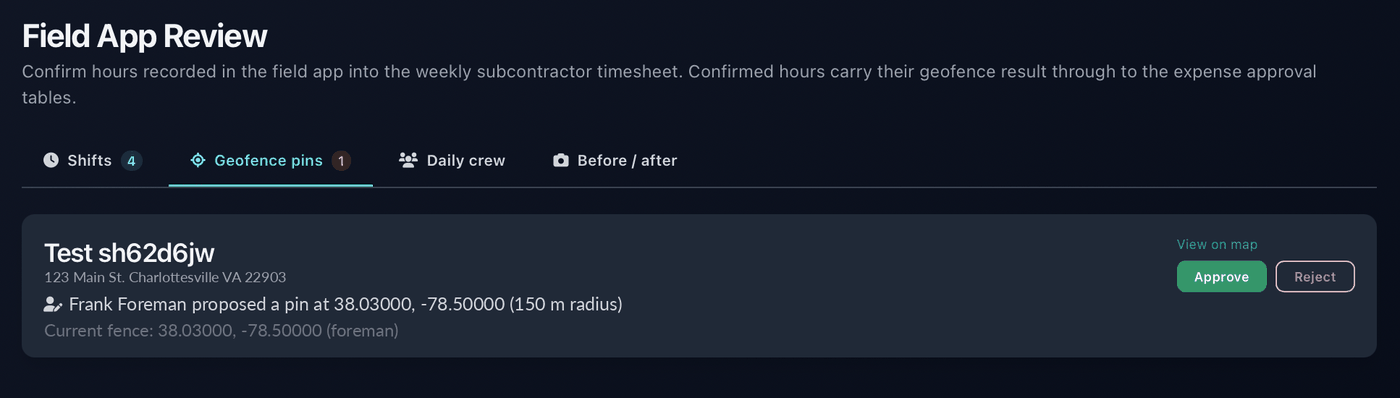
Each card shows the job and address, who proposed the pin and its coordinates and radius, and the job's current fence (or "This job has no fence yet — nothing can be verified until one is approved"). View on map opens the proposed point in Google Maps in a new tab so you can check it's on the property. Approve makes it the job's live fence; Adjust opens the proposed pin on a map so you can nudge or resize it before saving it as the fence; Reject discards the proposal and leaves the existing fence alone.
Until a proposal is approved, punches are judged against the existing fence (or are unverifiable if the job has none). Approving changes what future punches verify against and nothing else: every punch froze the distance and radius it was judged at, so history is never rewritten. After approval, crew phones pick up the new fence on their next refresh. Pins on workers' own worksites don't come here: workers set those themselves, and a signed report labels the resulting checks "worker-set pin" so a reader can tell the two apart.
Geofences tab: setting or moving a job's location yourself
Below the proposed pins, Job locations lists every unarchived job you supervise or manage (admins: every job) with its current fence, who set it and when, how many crew are assigned and the last shift date; type in the search box to narrow the list. Set location (or Move) opens a map editor: look the street address up and pick a match, click the map, or drag the pin; set the radius (25–1000 m); save. You don't need a foreman to request a pin first. The grey dashed ring on the map is the fence that is live now, and an orange dot marks a foreman's pending proposal, so you can see what you're replacing.
Saving writes the fence immediately (source "office"), clears any pending proposal on the job, and crew phones pick it up on their next refresh. As with approvals, only future punches are judged against the new fence: every past punch keeps the distance and radius it was judged at.
On site now tab: who is clocked in at each job
The live view of open shifts on your jobs, grouped by job: each person, their role, company, the clock-in time, how long they have been on the clock, the ticket they are on, and where the phone was at clock-in (inside or outside the fence, with the distance from the fence centre and the fix's accuracy). Flags call out a shift open past the 16-hour cap (a missed clock-out: the server closes it at the cap for you to set the real hours on the Shifts tab), an offline clock-in, a mock location, or a missing location permission; the map-pin button opens the punches. The tab badge shows the count, the list refreshes itself every minute while it is open, and Refresh reloads it now.
Under the live cards, Jobs with a crew assigned lists every job that has an active crew in the app, with how many are assigned, how many are on the clock now, how many the foreman confirmed on site today, the last shift date and whether the job has a fence, so a quiet job is visible too. The phone watches the fence on the device during a shift and reports nothing in between punches, so the location shown is the clock-in fix, not a live track.
Daily crew tab: reading a foreman's confirmation
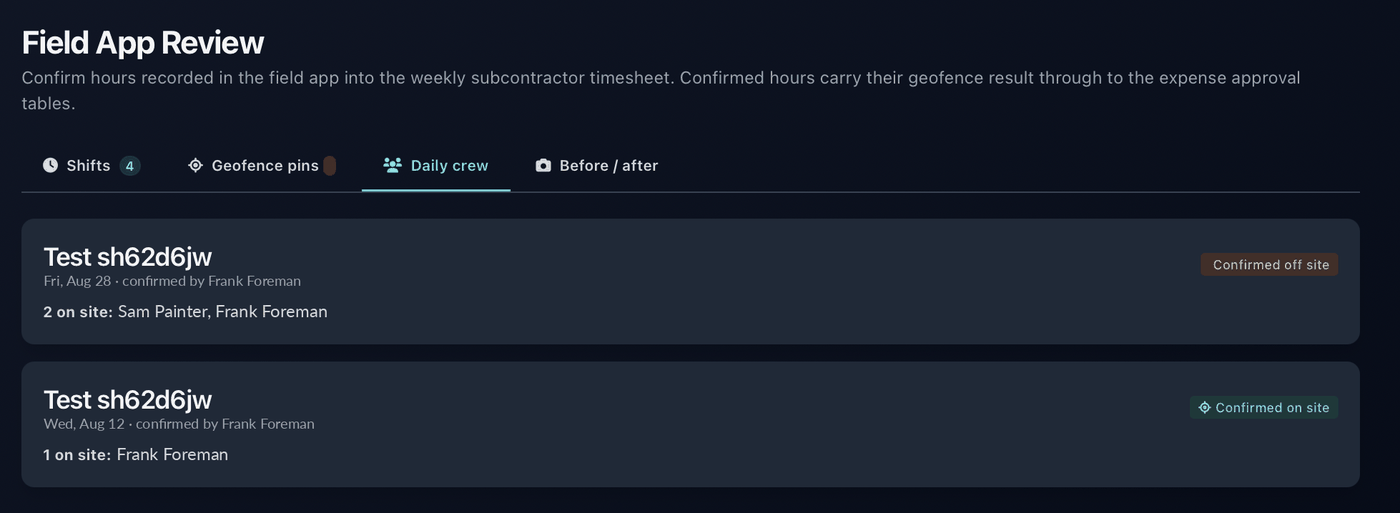
Each card is one job on one day: the foreman who confirmed it, a Confirmed on site or Confirmed off site pill (from the location fix taken when they tapped Confirm), the names marked on site, any marked absent, and the foreman's note. A foreman confirming again the same day replaces that day's card. Use it alongside the Shifts tab: a person confirmed on site with no shift, or a shift with no confirmation, is worth a question.
Before / after tab: photo reports
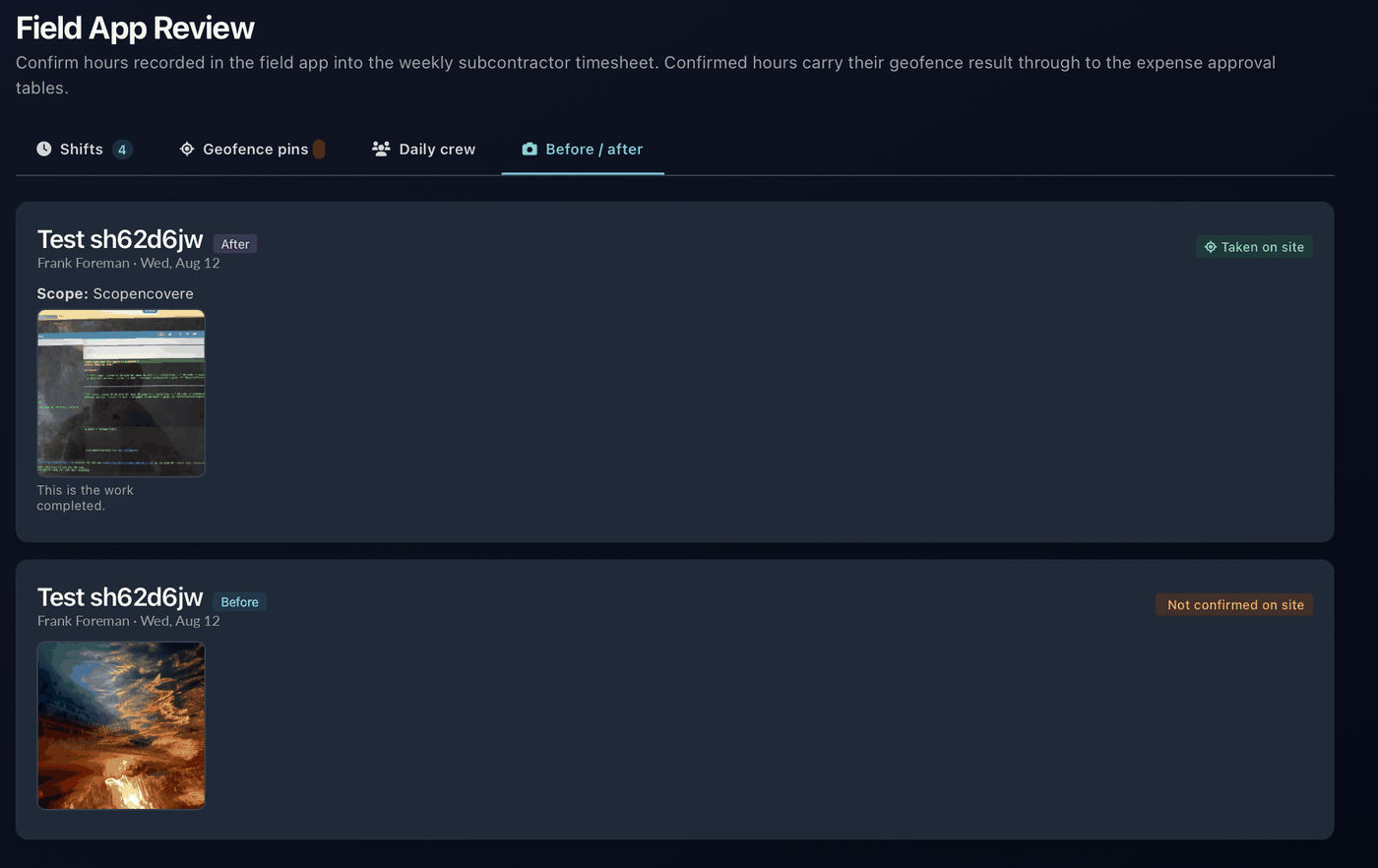
Each card is one photo set: the job, a Before or After tag, the foreman and date, a draft marker if it was never submitted, and Taken on site or Not confirmed on site from the location fix at submission. The scope summary and notes come first, then the photos with their captions; click a photo to open it full size. Photos are served only through this page to users in the job's scope; the app itself can't display them again, and no part of spvaTrack shows them to customers; if a supervisor wants to show a customer a photo as a record of completed work (which the crew terms allow), that is done by hand outside this page.
The company Sun Sub hours page (subcontractor accounts)
A subcontractor company signed in to spvaTrack has its own page, Sun Sub hours (admins open it with a subcontractor_id), showing: the workers linked to the company and whether each shares their worksite hours; the company's pre-approved roster of phone numbers (add a number and name, or remove one), which is what lets a worker link the company by typing its name; pending invites; and the last 60 days of shifts with a Source column (company job or personal site) and the verified flag, plus a CSV export. Invite on that page creates the roster entry and, if the number already has its own Sun Sub account, sends the invite text at once. Personal-site rows appear only for workers who turned sharing on.
Independent accounts and complimentary access
People who signed up on their own appear in the Field App Review crew directory as Independent (Sun Sub) (filter with the independent scope). Their worksite shifts are not reviewed here. Admins can grant an account complimentary access to reports and company linking until a date, which is how a company can cover its crew's report costs without each worker subscribing; the worker's Subscription screen then shows the complimentary status and end date.
The feature flags
Recording is gated by the Field app → subcontractor hours flag on the technician-only Feature Flags page. While it's off, crew can sign in and read but every write (clock in/out, worksites, crew changes, confirmations, photos, pins) is refused with "Hour recording isn't switched on yet", and this review page shows the amber warning. Anything already recorded is still listed and can still be confirmed. Devices can be provisioned and sign in ahead of turning it on. Three more flags on the same page gate the 1.2 features separately, each off until switched on: Sun Sub: open sign-up (new accounts from any US/CA number), Sun Sub: signed hours reports, and Sun Sub: company link / employer sync (invites, roster linking and the company hours page). A fourth, Sun Sub: show Subscribe link in app (US storefront), controls whether the app offers the "Subscribe on our website instead" card link next to the App Store purchase; the in-app purchase itself is never flag-gated. Two Apple settings live in system_settings rather than on that page: sunsub_apple_product_id (the App Store product) and sunsub_apple_accept_sandbox, which makes sandbox purchases count as paid while App Review is testing and should be set to false after launch.
Report a problem
Something in the app isn't behaving, hours look wrong, a report won't verify, or you're stuck on a message that isn't covered above? Tell us and we'll sort it out.
support@sunpaintingva.com
(434) 207-2025 — during business hours, Eastern time. Spanish spoken.
Please include:
- your name and the phone number you sign in with;
- the worksite or job name, or the report id if it's about a report;
- the date and time it happened;
- a screenshot of the message or screen, and the app version from the bottom of the Account tab.
For hours questions on a company job, your supervisor is usually the fastest route: they can see the shift and the punch evidence directly.